Live Spreads
Where are the biggest gaps between exchanges right now? Each row is one token on a pair of exchanges, a long leg and a short leg, shown alongside that pair's funding, price, liquidity and payback metrics.
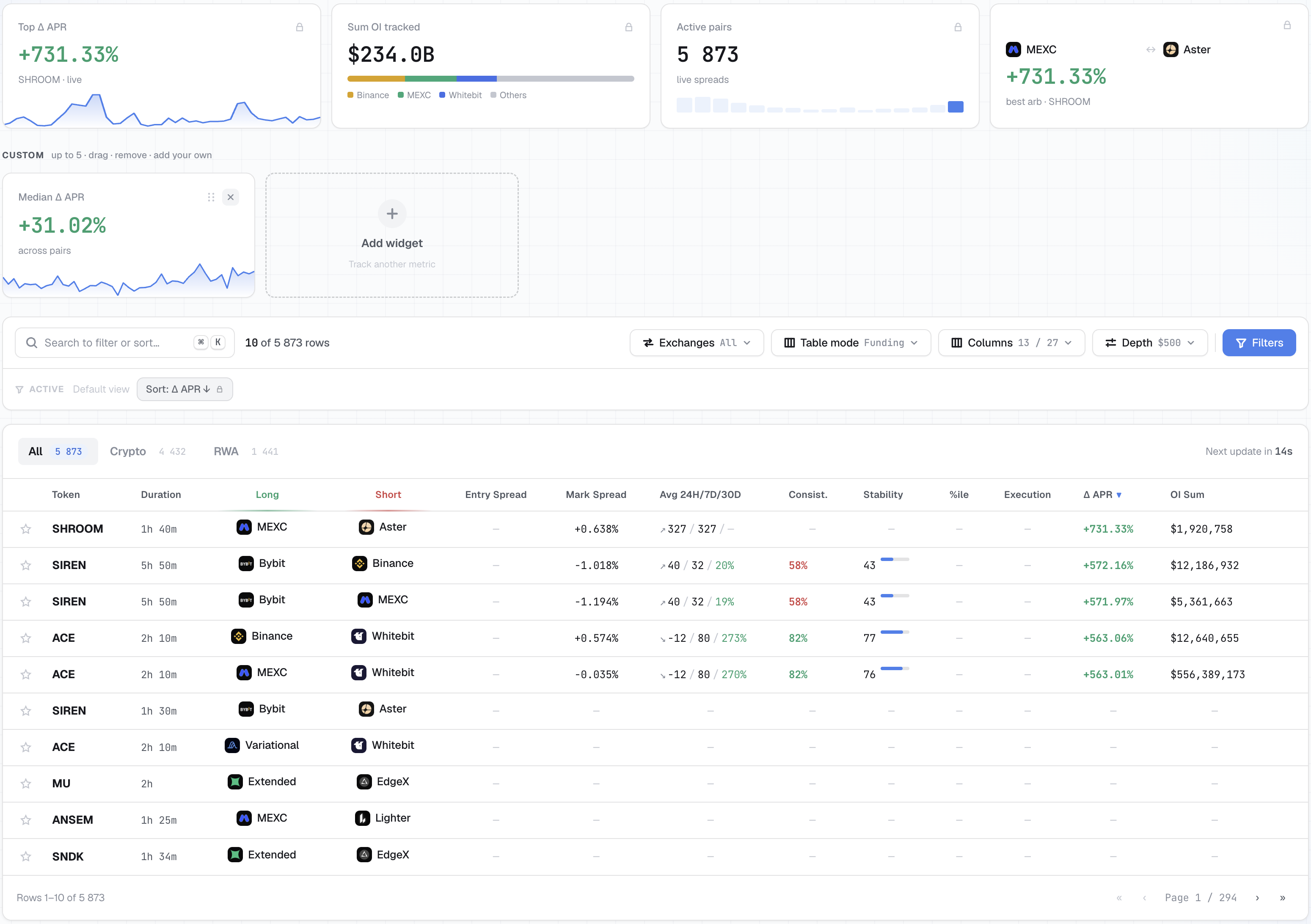
How to read the table
The table has 27 columns, and 13 are shown by default. Open Columns to show the rest, hide the ones you don't need, or drag a row to change the column order. Every column header has a tooltip: hover over it to get the definition without leaving the page.
The table updates continuously. The Next update in Ns countdown in the top-right corner shows when the next update arrives.
Identification and legs
| Column | Meaning |
|---|---|
Token | The perpetual's base token. Tabs above the table split the list into All / Crypto / RWA, each with its own counter. |
Duration | How long this spread has held at its current level. |
Long | The long leg's exchange. The cell links straight to this instrument on the exchange. |
Short | The short leg's exchange; the link works the same way. |
Price and execution cost
| Column | Meaning |
|---|---|
Entry Spread | The cross-exchange price gap you cross when you open a position. Quoted at the size set in Depth. |
Exit Spread | The same gap for closing the position, at the same size. |
Mark Spread | The difference between the two exchanges' mark prices. |
Execution | Entry Spread plus Exit Spread: the full execution cost of a complete round trip. |
Funding and payback
| Column | Meaning |
|---|---|
Δ APR | The annualized difference between the exchanges' funding rates. Gross, before exchange fees and slippage. The default sort in the Funding rate layout. |
APR Long / APR Short | Each leg's own funding rate, annualized. |
Next Funding Long / Next Funding Short | Countdown to the next funding payment on each exchange. They rarely line up, because exchanges use 1h, 4h and 8h intervals. |
Break Even | How long you need to hold the position for the funding carry to cover Execution. A dash means the carry doesn't cover it. |
Intervals to B/E | The same payback, expressed in this pair's funding intervals. |
Liquidity
| Column | Meaning |
|---|---|
OI Sum | Total open interest across both exchanges, in dollars. |
OI Long / OI Short | Open interest on each leg separately. |
OI Diff | The gap between the two legs' open interest, in percent. |
Volume Sum | Total 24-hour volume across both exchanges, in dollars. |
Volume Long / Volume Short | 24-hour volume on each leg. |
Volume Diff | The gap between the two legs' volumes, in percent. |
Spread quality
| Column | Meaning |
|---|---|
Avg 24H/7D/30D | Moving average of net APR over 24 hours, 7 days and 30 days. The arrow shows momentum: 24h versus 7d. The 30-day value is green when the long-term carry is positive and red when it's negative. Click the header to sort by the 24-hour average; hover over the 30-day value to see the median and dispersion of hourly rates. |
Consistency | The share of hours over the last 30 days in which the pair paid positive net funding. For pairs with less than 30 days of history, the actual data coverage is shown next to the value. Hover over the value to see the number of sign flips. |
Stability | A 0–100 score for how steadily this pair's funding level holds compared with all pairs, based on the dispersion of its hourly rates. Higher means the carry holds its level instead of spiking. |
Spread %ile | Where the current Entry Spread sits within its own 30-day history. Higher means the spread is wide relative to this pair's usual level. |
Consistency and Stability answer different questions. A pair can pay almost all the time and still pay unevenly: high Consistency, low Stability.
Table modes
Table mode offers two preset column layouts, one per strategy. Switching the layout also changes the sort.
| Layout | Description in the UI | Result |
|---|---|---|
Funding rate | APR spread, duration & liquidity | 13 of 27 columns, sorted by Δ APR |
Price | entry spread, mark & Δ APR | 6 of 27 columns, sorted by Entry Spread |
A layout is a starting point, not a limit: after switching, you can add or remove columns in Columns.
How to set the depth
Depth (labeled Spread depth when open) sets the order size at which spreads are quoted. Entry and exit spreads are quoted at this notional, so a larger size includes more slippage.
| Value | Label in the UI |
|---|---|
$500 | tightest · top of book |
$1,000 | shallow depth |
$10,000 | mid depth |
$50,000 | deep · most slippage |
Before comparing rows, set this to the size you actually plan to trade. Entry Spread, Exit Spread and Execution change along with it.
How to narrow the list
- Search (⌘K) filters and sorts as you type. This is where you filter by token and exchange.
Exchangesfilters by exchange. Pick one exchange to see every pair with a leg on it, or two or more to see only pairs between the selected exchanges. The default isAll venues · no exchange filter.Filterscovers numeric ranges. Each field takes a minimum and a maximum and comes with one-click presets.
| Field | Unit | Presets |
|---|---|---|
Δ APR | % | ≥ 20 · ≥ 100 · ≥ 500 |
OI Sum | $ | ≥ 100K · ≥ 1M · ≥ 10M |
Price Spread | % | ≥ 0.5 · ≥ 1 |
OI Diff | % | ≤ 5000% · ≤ 50000% |
Volume Sum | $ | ≥ 1M · ≥ 10M · ≥ 100M |
The
Only favoritescheckbox limits the table to your favorite assets. At the end come the active filter counter (on the left) andReset, which clears all filters at once.
Below the toolbar is a row labeled
Active: everything that currently narrows or orders the table.
The
Sort: <column> ↓chip shows the current sort and can't be removed: in theFunding ratelayout it'sSort: Δ APR ↓. The other chips carry a source label:
Category: Cryptocomes with theTABSlabel,Token: …andExchange: …withSEARCH,- numeric ranges with
FILTERS.Each chip has its own × button, and the label tells you where the condition came from and where to go to remove it.
The
Clear allbutton appears only when there's something to reset, and it returns the page toDefault view.
Watch the direction:
OI Diffpresets are ceilings, while all the others are floors.
KPI cards
Above the toolbar are two rows of cards. Their structure is the same on Live Spreads, Finalized Intervals and Funding Rates, so it's covered once here; on those pages only the set of cards changes.
PINNED is labeled core metrics, always shown. These four cards can't be removed. On this page they are Top Δ APR with its token, Sum OI tracked with a breakdown by exchange, Active pairs, and Best arb pair, the pair of exchanges with the widest spread right now.
CUSTOM is labeled up to 5 · drag · remove · add your own. It holds up to five cards of your choice: drag to reorder, click × to remove, and use Add widget to open the catalog.
This page's catalog is split into four groups:
| Group | Cards |
|---|---|
SPREADS | Top Δ APR · Median Δ APR · Mean Δ APR · Highest spread · Active pairs |
FUNDING | Mean APR · APR spread · Most positive · Most negative |
LIQUIDITY | Sum OI tracked · Best arb pair |
PNL | Top PnL · Total realized · Intervals (7d) |
Each page has its own catalog, and not every card in it belongs to that page: here the PNL group is made up of Finalized Intervals metrics. The PINNED label inside the catalog marks a card already taken by the pinned row; on this page, it marks Top Δ APR, Active pairs and Sum OI tracked.
What Pro changes on this page
When browsing, you get the list itself and both Table mode layouts. Exchanges, Columns, Depth, Filters and custom KPI cards are Pro. Free access also shows only the top rows of the ranked list, and the data refreshes less often.
Because Entry Spread and Exit Spread are quoted at the Depth size, they show a dash without access to Depth.
Live Spreads and Finalized Intervals
Live Spreads shows spreads that are open right now. Finalized Intervals shows the ones that have already closed, with their actual duration and result. Look for candidates on the Live Spreads page, and use the Finalized Intervals page to run backtests, analyze how spreads played out and learn from your mistakes.