Finalized Intervals
A historical log of spreads that have already opened and closed, each with its actual duration and result. If Live Spreads shows what is open right now, this page shows what has already played out.
How to read the table
An interval is one “window” in a spread's life: the moment the difference between two exchanges opened and the moment it closed.
The range switch above the table sets the window to 7d, 30d or 90d. The window drives the whole page: the rows in the table, the counters on the tabs and every KPI card.
The tabs split the list into All / Crypto / RWA, and the counter on each tab shows how many of the window's intervals fall into it. Each interval in the window is a separate situation in which the spread could potentially have been traded.
| Column | Meaning |
|---|---|
Token | Base token of the perpetual. |
Duration | How long the interval lasted from open to close. |
Δ APR | Annualized funding difference the pair held throughout the interval. |
Long / Short | Exchange of each leg. |
Realized PnL | Actual result of the interval in dollars. Default sort. |
OI Sum | Total open interest across both exchanges. |
The page has 17 columns in total. A fresh session shows seven by default — the ones listed above. You can't remove Token, Long and Short: they have a lock in the picker. The other ten are added via Columns:
| Column | Meaning |
|---|---|
APR Long | Annualized funding rate of the long leg over the interval. |
APR Short | Annualized funding rate of the short leg over the interval. |
OI Diff | Difference in open interest between the exchanges, in dollars. |
Volume Sum | Total volume across both exchanges over the interval. |
Start | When the interval opened. |
End | When the interval closed. |
PnL Funding | The part of Realized PnL that came from funding. |
PnL Price | The part of Realized PnL that came from price movement. Together with PnL Funding, it makes up the interval's full result. |
PnL APR | The interval's result expressed as an annualized rate. |
Score | Composite rating of the interval from 0 to 100 — see the section below. |
The counter on the Columns button shows your current configuration.
You can sort by Duration, Δ APR, Realized PnL, OI Sum and Token. Search (⌘K) filters tokens and exchanges the same way it does everywhere else.
The table is split into pages of twenty rows. Below it you see Showing 1–20 of N and page navigation; scrolling doesn't load more rows.
Toolbar

Exchanges
Exchange filter.
With one exchange selected, you see every spread that had a leg on it; with two or more, only spreads between the selected exchanges. The default is All.
Use it when you compare the character of a specific exchange pair: how many spreads it produced in the window and how long they lasted.
Columns
Column picker. The header shows N / 17 shown and a Reset button.
Below are two sections: SHOWN – DRAG TO REORDER with the number of shown columns, and HIDDEN with the number of hidden ones. To reorder shown columns, drag them by the handle on the left.
Token, Long and Short have a lock; every other column has an eye icon that hides it. In the hidden section, each column carries a group label — Window, APR, Liquidity, PnL or Score. At the bottom are the Show all and Done buttons. The layout is stored in your browser.
Price
Price mode — how each leg is valued when the result is calculated.
| Value | Chip on the button | What it means |
|---|---|---|
Mark Price | Mark | The exchange's mark price, no slippage. |
$500 | B/A $500 | Top-of-book spread — the narrowest. |
$1,000 | B/A $1k | Shallow depth. |
$10,000 | B/A $10k | Medium depth. |
$50,000 | B/A $50k | Deep — the most slippage. |
Markshows the result without execution costs.Bid/Askmodes quote the spread at the size you would actually fill, so the deeper the level, the more slippage is built into the number.- The same interval in
Markand inB/A $50kgives the upper and lower estimates of the same trade.
$ Size
Position size — the notional that each row's Realized PnL is scaled to. Preset steps: $1,000 · $2,000 · $5,000 · $10,000 · $25,000 · $50,000 · $100,000 · $250,000 · $500,000 · $1,000,000. The field also accepts any custom number, up to $10,000,000. In Mark mode the minimum is $100; in Bid/Ask modes the minimum is one “clip” of the selected depth, and the caption under the field counts how many such clips fit into your size.
The difference between modes is not cosmetic: in Mark the result scales linearly, while in Bid/Ask a position larger than one clip pays that depth's slippage more than once.
Filters
A modal with numeric ranges in two columns: each field has a min–max pair and quick presets. Presets on this page:
| Field | Presets |
|---|---|
Δ APR, percent | ≥ 100 · ≥ 500 · ≥ 2000 |
Realized PnL, dollars | ≥ 1K · ≥ 5K · ≥ 10K |
OI Sum, dollars | ≥ 1M · ≥ 10M |
Duration, hours | ≤ 12h · ≥ 24h |
Volume Sum, dollars | ≥ 1M · ≥ 10M · ≥ 100M |
There is also an Only favorites toggle. The footer holds the N active counter, Reset and Apply. Tokens and exchanges aren't set here: they live in search (⌘K).
Active conditions row
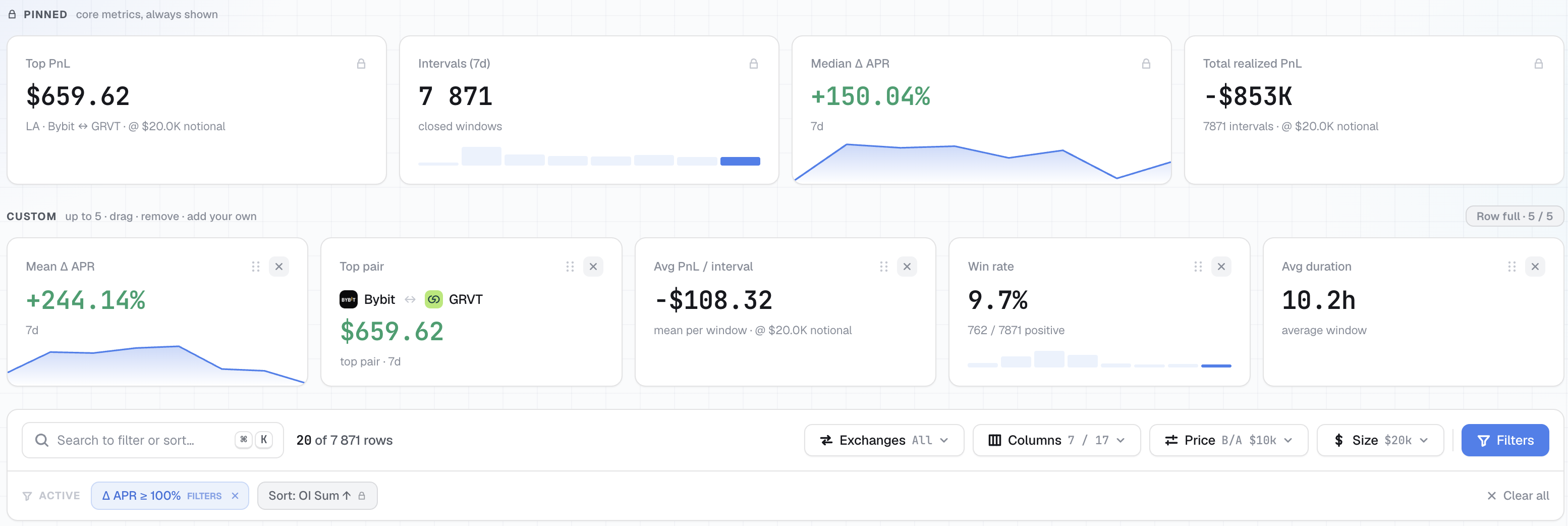
Below the toolbar is a row labeled Active: everything that currently narrows or orders the table.
Default view— this label appears when nothing is set: no filters, theAlltab, default sort.Sort: <column> ↓— the sort chip, with a lock. You can't remove it: some sort is always applied. The default isSort: PnL ↓.- Condition chips —
Category: Cryptowith theTABSsource label,Token: …andExchange: …with theSEARCHlabel, numeric ranges with theFILTERSlabel,★ Starred. Each has its own × button. Clear all— appears only when there is something to reset, and returns the page toDefault view.
The source label on a chip shows which control set the condition, so you know where to go to remove it.
KPI cards
Above the toolbar are two rows of cards, PINNED and CUSTOM. How they work is covered on the Live Spreads page; this section only lists the cards available on this page.
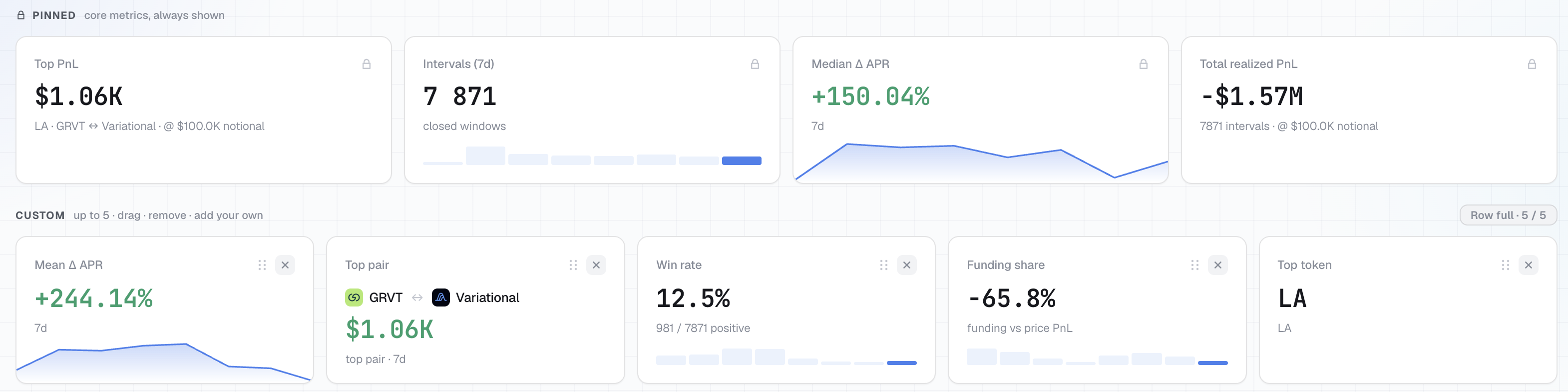
PINNED — four pinned cards:
| Card | What it shows |
|---|---|
Top PnL | The best spread result in the window; the caption shows the token, the exchange pair and the reference notional. |
Intervals (7d) | How many intervals closed in the window. The window in the title follows the 7d/30d/90d switch. |
Median Δ APR | Median annualized funding difference across the window's intervals. |
Total realized PnL | Sum of the results of all intervals in the window at the reference notional. |
CUSTOM — up to five slots. Add widget opens the catalog, which is split into three groups:
| Group | Cards |
|---|---|
PNL | Top PnL · Total realized PnL · Avg PnL / interval · Win rate · Funding share |
SPREAD | Median Δ APR · Mean Δ APR · Top pair · Top token |
ACTIVITY | Intervals (<window>) · Avg duration · Sum OI |
Three of them answer questions the table doesn't:
Win rate— shows the ratio of profitable closed intervals to losing ones.Funding share— how much of the total result came from funding rather than from price movement. A low value means price carried the window, and such a result is repeatable in a different way.Avg duration— the average interval length in the window. Together withIntervals, it describes the character of the window: many short bursts or a few long divergences.
Median and mean Δ APR sit next to each other in the catalog on purpose: a large gap between Median Δ APR and Mean Δ APR means the mean is skewed by a tail of a few anomalous intervals.
How results are normalized
All dollar values on the page are normalized to a notional, not to your position. But they are normalized to different notionals, and you need to keep that in mind.
Realized PnLin the table follows$ Size: change the position size and the column recalculates.- The
Top PnLandTotal realized PnLcards are calculated at the base notional of the selectedPricemode; the$ Sizecontrol doesn't change them. The notional a card is calculated at is shown right below it, in the@ … notionalline. Read this caption before you compare a card with a table row: while$ Sizeholds a different number, they are on different scales. - To read a card at your own size, scale it by the ratio of your notional to the one in its caption.
- Exchange fees are not included. Add your own maker and taker assumptions for both legs before you compare a row with your costs. In
Markmode slippage isn't included either, because it uses the mark price.
Score
Score rates an interval from 0 to 100 by combining the actual funding result, the price stability of the underlying asset, liquidity and how cleanly the spread closed. A higher score marks intervals that were more reliable to trade in practice, as opposed to rows where the stated Δ APR was large but liquidity was thin.
Score isn't part of the default layout. Add it via Columns.
What it's for
Persistence. Before you act on a live spread, check how long comparable intervals lasted: same token, same exchanges, a similar level. A picture made of twenty-minute intervals reads very differently from one made of multi-hour intervals.
Exchange behavior. Some exchange pairs produce frequent short bursts, others rare but long divergences. The log makes the character of each pair visible.
Entry rules. Because every interval carries its actual outcome, this is where you test an entry rule against what comparable pairs actually did.
Finalized Intervals and Pair Analysis
Both pages show historical data. Finalized Intervals covers the whole market and is event-based: a log of individual completed spreads across all pairs. Pair Analysis covers one pair, continuously. Use this page to look at history broadly, and the Pair Analysis page for deep research.